


Key takeaways
- Set your chair so hips sit level with or just above your knees, then raise the desk or chair until your elbows rest at 90 degrees or slightly open.
- Place the monitor about an arm's length away, with your eyes level with a point 2 to 3 inches below the top of the screen.
- Low back pain is the single leading cause of disability worldwide, so posture at a desk you use daily is worth getting right.
- Most back-friendly fixes are cheap: a footrest, a rolled towel for lumbar support, a laptop riser and an external keyboard.
- Match the setup to the person and the room, not to a photo of a perfect office; the right height is the one that keeps your joints neutral.
Protecting your back at a home desk comes down to three adjustments: set your chair so your elbows rest near 90 degrees, raise your screen until your eyes meet a point just below the top of it, and get up to move every half hour or so. An ergonomic home office setup is less about expensive gear and more about getting a handful of heights and angles right for your body. This guide walks through each one in order, from the floor up, with the measurements that actually matter and the cheap fixes that solve most problems.
Back trouble is common for a reason. Low back pain is the single leading cause of disability worldwide, affecting an estimated 619 million people in 2020, a figure the World Health Organization expects to climb to around 843 million by 2050 (World Health Organization, Low back pain fact sheet, 2023). A desk you sit at five days a week is exactly the kind of daily habit worth setting up properly.
Why an Ergonomic Home Office Setup Beats Your Old Office Desk
Home offices tend to be improvised. A kitchen chair, a laptop on a dining table, a corner of a bedroom: none of it was designed for eight hours of typing. The office you left behind was probably furnished to a standard, with an adjustable chair and a desk at a sensible height. At home, that quality control is on you.
The stakes are the same whether the desk is corporate or domestic. Sustained awkward posture loads the spine, shoulders and wrists in ways the body was not built to tolerate for long stretches. The difference is that at home nobody is checking. A setup that feels fine for the first hour can leave you stiff by mid-afternoon, and the slow build of that strain is easy to ignore until it becomes a real problem.
The good news is that a home office is also easier to fix. You control every variable, you can experiment without asking anyone, and most of the adjustments cost nothing.
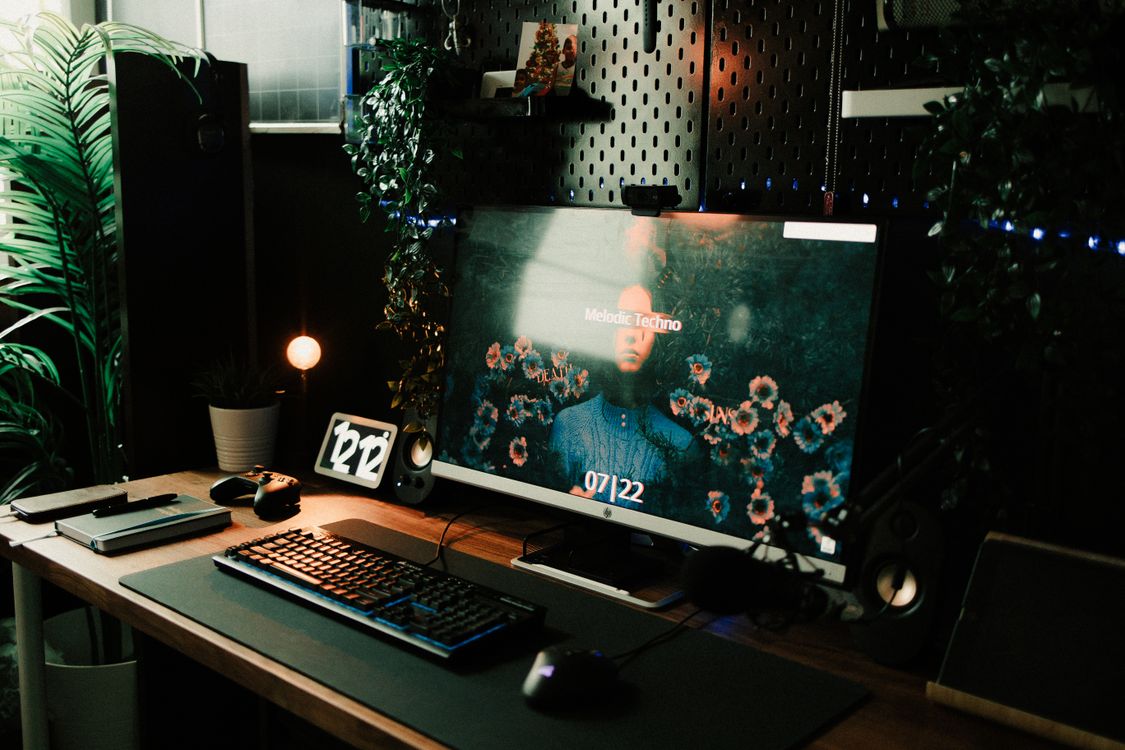
Start From the Chair: Hip, Knee and Elbow Angles
Set the chair before anything else, because every other measurement follows from where your body sits. Your feet should rest flat on the floor, your hips should be level with or slightly higher than your knees, and your elbows should hang close to your sides and bend to roughly 90 degrees when your hands reach the keyboard.
That elbow angle is the anchor. Cornell University's ergonomics guidance recommends keeping the elbow angle at or greater than 90 degrees to avoid nerve compression at the elbow (Cornell University Ergonomics Web, Ergonomic Guidelines for Computer Workstations). If your arms have to reach up to the keys, the desk or keyboard is too high. If your shoulders slump and your wrists bend down to reach, it is too low.
One detail surprises people: fully upright is not the target. Cornell notes that the best seated posture is a reclined one of 100 to 110 degrees, not the rigid 90 degree position most of us picture when we think of good posture. A slight recline lets the chair back share some of the load your spine would otherwise carry alone.
If Your Feet Do Not Reach the Floor
Short users often set the chair for their arms, which leaves their feet dangling. That shifts pressure onto the backs of the thighs and encourages slouching. The fix is a footrest. A sturdy box, a ream of paper or a purpose-built rest all work. The goal is simply flat support so your knees stay near a right angle.
Set the Desk Height to Match, Not the Other Way Round
Desk height is a consequence of chair height, not a starting point. Once your chair is set so your elbows sit at about 90 degrees, your desk should meet your hands at roughly that same level. Cornell's guidance puts a typical combined writing and computer surface between 28 and 30 inches above the floor, which suits most adults, though your own measurement wins over any average.
If your desk is fixed and too high, raise the chair and add a footrest rather than hunching up to the keys. If it is too low, you have fewer options short of replacing it, which is one reason a height-adjustable desk earns its keep over years of daily use. Standing desks add flexibility, but the same rules apply when you stand: elbows near 90 degrees, screen at eye level, weight balanced.
Office Stock Group stocks a wide range of home office desks and height-adjustable options for exactly this reason, since the desk is the one piece most likely to lock you into a bad angle if you buy on looks alone. Measure your seated elbow height first, then shop to it.
Position the Monitor so Your Neck Stays Neutral
Screen placement protects your neck, and it is the adjustment people get wrong most often. Sit upright, look straight ahead, and your eyes should line up with a point about 2 to 3 inches below the top of the monitor casing, according to Cornell's workstation guidelines. The centre of the screen should sit roughly 17 to 18 degrees below horizontal, a gentle downward gaze rather than a craned-up or dropped-down one.
Distance matters too. The monitor should be about an arm's length away: sit back, reach out, and your fingertips should just brush the screen. Closer than that and your eyes strain; much further and you lean in and lose the posture you set up at the chair.
A single rule covers most of it. Your head weighs a lot, and every degree you tip it forward multiplies the strain on your neck and upper back. Keep the screen high enough that your head balances naturally over your shoulders.
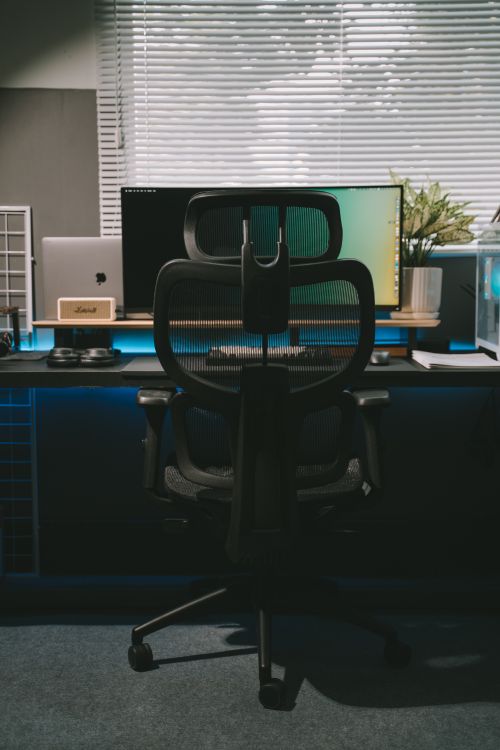
The Laptop Problem
Laptops break the rule by design. The screen and keyboard are joined, so you cannot have both at the right height at once. Raise the laptop to get the screen up and the keyboard climbs out of reach; lower it for the keyboard and you stare down at the screen all day.
The fix is to separate them. Put the laptop on a riser or a stack of books so the screen hits eye level, then plug in an external keyboard and mouse at elbow height. For anyone working from a laptop full time, this one change does more for the neck and shoulders than almost anything else.
Keyboard and Mouse: Keep the Wrists Flat
Your wrists should stay flat and straight while typing, floating level with your forearms rather than bent up, down or sideways. Keep the keyboard directly in front of you, close enough that your elbows stay at your sides and bent near 90 degrees. The mouse belongs right beside it at the same height, so you are not reaching forward or out to the side every few seconds.
Watch for a few common traps:
- Typing with wrists resting hard on the desk edge, which compresses the soft tissue underneath.
- Using the little flip-out feet on the back of a keyboard, which tilt it up and bend the wrists backward. Most people are better off with the keyboard flat or even tilted slightly away.
- A mouse placed far out past a numeric keypad, forcing a long reach that strains the shoulder over time.
A wrist rest can help as a place to park your palms between bursts of typing, not as something to press into while you work. If your hands or wrists tingle or ache, treat it as an early warning and recheck these angles before anything else.
Light the Space so You Are Not Fighting Glare
Lighting is part of ergonomics because poor light drives bad posture. When a screen is hard to read, people lean in, tip their heads and squint, which undoes the careful setup above. Good lighting lets you sit back and keep your neutral position.
Position your desk so the strongest light source, usually a window, sits to the side rather than in front of or directly behind the screen. Light behind you reflects off the screen as glare; light facing you makes the screen look dim by comparison and tires your eyes. A side-on arrangement avoids both.
Add a task lamp for documents and detail work, and aim for even, indirect light rather than a single harsh bulb. If afternoon sun washes out your screen at a particular time of day, a blind or a repositioned monitor usually solves it faster than cranking up the brightness. Give your eyes regular breaks from the screen too, which conveniently lines up with the movement breaks your back needs anyway.
Plan the Space Around the Person, Not the Room
Good angles fall apart in a cramped or borrowed corner, so the room matters as much as the furniture. Before you buy anything, work out where the desk can sit so the screen escapes window glare and you have clearance to push the chair back and stand. A desk jammed against a wall with the monitor facing a bright window will fight every adjustment you make.
Depth is the measurement people forget. You need roughly an arm's length between your eyes and the screen, which means a desk at least 70 to 80 centimetres deep for a standard monitor. A shallow desk forces the screen too close and your keyboard too far forward, and no amount of chair tweaking fixes that.
A few space decisions pay off over time:
- Give yourself clearance to stand and step away without moving furniture, which makes the hourly movement break effortless rather than a chore.
- Keep the most-used items, keyboard, mouse, notepad, phone, inside easy reach so you are not twisting or stretching all day.
- In a shared or multi-use room, favour a desk and chair you can reset quickly, since a setup two people share needs to re-fit each of them.
For a household where more than one person uses the same desk, adjustability stops being a luxury. A chair with easy seat-height and backrest controls and a screen on an adjustable arm let each user return to their own neutral position in seconds rather than putting up with someone else's settings.
Tame the Cables for a Tidy, Safe Workspace
Cable management is the unglamorous finish that keeps a setup working. Loose cables snag, pull monitors out of position, trip you on the way past and make it a chore to adjust anything. A tidy desk is one you will actually keep adjusting as your needs change.
A few low-effort habits handle most of it:
- Run power and data cables to one side and bundle them with reusable ties or a sleeve.
- Use a cable tray or a couple of adhesive clips under the desk to lift cords off the floor.
- Leave enough slack that a sit-stand desk or a shifted monitor will not yank anything tight.
- Keep a short, labelled charging cable within reach so your phone does not pull you out of position.
The payoff is practical rather than cosmetic. When cables are sorted, you can move your monitor, swap your keyboard or raise your desk in seconds, which means you are far more likely to keep the whole setup dialled in over months of use.
Budget-Friendly Ergonomic Accessories Worth Adding
Most of the gear that protects your back is cheap, and a few household items stand in for it well. The point of each accessory is to restore a neutral angle you cannot otherwise reach. In rough order of value for money:
- A rolled towel or small cushion in the small of your back for lumbar support, if your chair offers none.
- A footrest, which can be a firm box, so short users keep their knees square and their feet flat.
- A laptop riser or a stable stack of books to lift the screen to eye level.
- An external keyboard and mouse, the partner to any laptop riser, so your wrists stay low while the screen stays high.
- A monitor arm or stand if your screen will not reach eye level on its own.
- A task lamp to cut glare and the squinting that comes with it.
When to Spend on a Proper Chair Instead
Accessories patch problems; a good chair prevents them. If you work full time from home, an adjustable ergonomic chair is the single upgrade most worth the money, because it fixes hip, knee and lumbar support at once rather than one towel at a time. Look for adjustable seat height, a backrest you can recline into that 100 to 110 degree range, and support that meets the curve of your lower back.
Breathable mesh chairs are popular for home use because they stay cool through long sessions and suit a range of body types. For a closer look at what to check before buying, see our guide to mesh office chairs in South Africa. Office Stock Group carries ergonomic and executive chairs across a range of budgets if you decide the chair is where your money should go.
Move Often, Because No Posture Lasts All Day
The best chair in the world will still hurt you if you never leave it. Posture is dynamic, and regular movement does more for your back than holding any single pose. Aim to change position every 30 to 60 minutes and to stand or walk for a minute or two each hour. Occupational safety guidance from regulators pairs good workstation setup with regular rest breaks, treating the two as complementary (United States Occupational Safety and Health Administration, Computer Workstations eTool).
Microbreaks are the easiest habit to build. Every half hour, stand, roll your shoulders, look at something across the room to rest your eyes, and sit back down. None of it takes more than thirty seconds, and it resets the small accumulations of strain before they turn into stiffness.
Build movement into the day rather than relying on willpower:
- Take calls standing or walking instead of hunched at the desk.
- Put the printer or the kettle far enough away that fetching something means a short walk.
- Set a quiet timer or use a break reminder so the half-hour prompt does not depend on you noticing.
A sit-stand desk helps here by making the switch frictionless. The switching is what protects you, since standing still for hours carries its own strains, so alternate between sitting and standing rather than trading one fixed posture for another.
Common Home Office Mistakes and How to Fix Them
Even a well-chosen setup drifts out of alignment, and the same handful of errors turn up again and again. Here is what to look for and the quick correction for each.
- Working from the sofa or bed. Soft surfaces give no back support and drop the screen into your lap. Move to a proper chair and desk for anything longer than a quick email.
- Laptop flat on the table all day. The screen sits too low and the neck pays for it. Raise it on a riser and add an external keyboard.
- The screen too far to one side. Twisting to a monitor placed off-centre loads the neck and lower back unevenly. Put your main screen squarely in front of you.
- A chair set for the arms, not the whole body. Feet dangling, thighs taking the pressure. Add a footrest so the knees stay square.
- Sitting still for hours. No posture is safe indefinitely. Change position every 30 to 60 minutes and stand or walk for a minute or two each hour.
- Buying furniture on looks alone. A desk that photographs well can lock you into a bad height. Measure your seated elbow height first, then shop to it.
The last point is the one that saves the most grief. The right desk and chair are the ones that fit the person using them, so a measurement beats a showroom every time.
Build the Setup in the Right Order
The quickest way to a back-friendly desk is to work from the body outward: chair first, then desk to match, then screen, then keyboard and mouse, then light and cables. Set each one against your own measurements rather than a generic ideal, and recheck them after a week once your body tells you what still aches.
If you are furnishing a home office from scratch or replacing a desk and chair that never fit, measure your seated elbow height, note your eye level, and browse Office Stock Group's home office range against those numbers. For a larger fit-out or a bulk order, the team can help you spec furniture to the people who will use it, which beats guessing from a product photo.
Frequently asked questions
What is the ideal desk height for a home office?
There is no single number, because it depends on your height and chair. Set your chair first so your elbows rest at about 90 degrees, then match the desk to that level. For many adults the work surface lands around 28 to 30 inches from the floor.
How high should my monitor be to protect my neck?
Sit upright and look straight ahead. Your eyes should line up with a point about 2 to 3 inches below the top of the screen, with the monitor roughly an arm's length away. Laptop users usually need a riser plus a separate keyboard to reach this.
Can I make my home office ergonomic on a tight budget?
Yes. A rolled towel for lumbar support, a stack of books as a monitor riser, a box as a footrest and an inexpensive external keyboard fix most posture problems. A dedicated adjustable chair is the one upgrade worth saving for.
How often should I get up from my desk?
Aim to change position every 30 to 60 minutes and stand or walk for a couple of minutes each hour. No single posture is healthy for hours on end, so movement matters as much as the perfect chair height.